
Why MCP in Copilot Studio
Model Context Protocol (MCP) lets a Copilot Studio agent reach into structured tools without you building a bespoke custom connector for every API. You point the agent at a streamable HTTP endpoint, the orchestrator inspects the available tools, and it can call them on the user's behalf during a conversation.
The tradeoff: you stop writing connectors, but you start owning the auth wiring. This post walks through the full Add a Model Context Protocol server flow in Copilot Studio as it stands in 2026, with most of the depth on OAuth 2.0 Manual - the auth path you will end up using for almost every real enterprise identity provider. Microsoft's reference doc lives at aka.ms/cs-mcp-add-server; this post fills in the field-by-field decisions and the Entra-side steps it leaves implicit.
There is also a second path - building a Power Apps custom connector against an OpenAPI schema for your MCP server (the schema uses x-ms-agentic-protocol: mcp-streamable-1.0). I won't cover that path here. The wizard route is faster, and the only reason to fall back to a custom connector is if you need to add custom request/response policies or share the connector across many agents.
Pro Tip
When to choose MCP vs. a custom connector: use MCP when the upstream service already exposes (or can expose) an MCP server, when tool definitions change frequently, or when you want the agent to discover capabilities at runtime. Stick with a custom connector when you need fine-grained per-action governance in DLP policies, or when the service only exposes plain REST and you don't want to operate an MCP wrapper.
Prerequisites
- Copilot Studio license on a Microsoft 365 tenant.
- Power Platform environment with Maker access.
- An MCP server with a streamable HTTP endpoint. Copilot Studio dropped SSE support for MCP after August 2025 - the field is now explicitly labelled Streamable endpoint. Modernise the server first if needed.
- Identity provider readiness, if the MCP server requires auth: an Entra ID app registration (or Okta / Auth0 / custom IdP equivalent). Do not set the redirect URI yet - Copilot Studio generates a per-MCP redirect URL when you save the form, and that is the value you paste into the IdP afterwards. More on this below.
Step 1 - Open the Add MCP server form
From inside your agent: Tools → Add a tool → Model Context Protocol. The form looks like this:
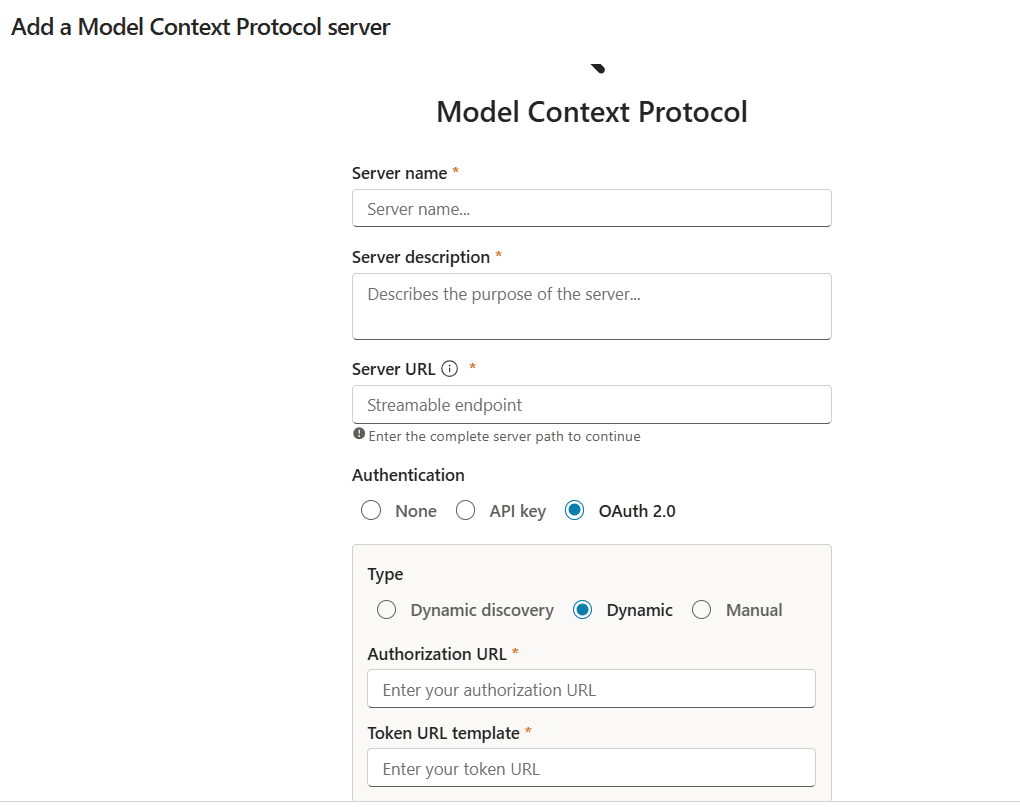
The first three fields are uncontroversial:
- Server name - shown to makers and to the orchestrator.
- Server description - required. Used by the LLM-driven tool selection. Write it like the docstring of an API: what does this server do, what tools does it expose, when should the agent call it. A weak description here is the most common reason an agent ignores a perfectly good MCP server.
- Server URL - the streamable HTTP endpoint. The form validates the path and refuses to continue until it can reach the endpoint.
Then you pick an auth model.
Step 2 - Pick your auth model
Three top-level choices, with three sub-modes inside OAuth 2.0:
| Auth | When to use | Caveats |
|---|---|---|
| None | Public MCP server, demos, internal-only servers behind a private network. | Don't ship this to production unless the network boundary is the auth boundary. |
| API key | Simple service-to-service, the MCP server is happy with a static key. Form lets you choose Header (most common) or Query placement, and you set the header/parameter name. | Key rotation is on you. Store the key in Azure Key Vault and reference via a managed identity if possible. No per-user identity propagates. |
| OAuth 2.0 / Dynamic discovery | The MCP server's IdP supports OAuth 2.0 Dynamic Client Registration (DCR, RFC 7591) and exposes a discovery endpoint. Copilot Studio finds the endpoints and registers itself as a client - zero fields to fill. | Cleanest path. Almost no enterprise IdP supports this combination today. |
| OAuth 2.0 / Dynamic | The IdP supports DCR but no discovery endpoint. You paste the Authorization URL and Token URL template; Copilot Studio still self-registers. | Rare in enterprise (DCR is intentionally disabled in most tenants). Common in lab and SaaS-first IdPs. |
| OAuth 2.0 / Manual Recommended | You wire authorization URL, token URL, refresh URL, client id, client secret, scopes, and the generated redirect URL by hand. | The realistic choice for almost any enterprise scenario. Rest of this post focuses here. |
Why Manual is the right default in 2026. Dynamic discovery and Dynamic registration are clean on paper, but in practice almost no enterprise IdP exposes either. Entra ID does not publish RFC 8414 metadata at a discoverable URL for arbitrary app registrations, and DCR is intentionally disabled in most tenants for security reasons. Okta, Auth0, and Ping require add-ons, custom configuration, or admin opt-in to support either. Manual is the path that works against any OAuth 2.0 / OIDC provider, gives you full control over the scopes and audiences, and is auditable - every value lives in your IdP and your MCP server config, nothing is negotiated at runtime by an LLM-adjacent component. If your MCP server is fronting a real enterprise API, pick Manual.
Pro Tip
When to deviate from Manual: Dynamic discovery is a good fit if your MCP server is wrapping a SaaS API whose IdP genuinely publishes the well-known metadata - Auth0 with default tenant settings, for example. Dynamic (DCR) is a fit for lab/demo MCP servers where you don't want to touch an IdP at all. Both fail closed in production for the reasons above; treat them as nice-to-haves, not the goal.
Step 3 - OAuth 2.0 Manual, end to end
This is the part that catches people out. There are five fields to fill, each tied to something you set in your identity provider. We will use Entra ID as the example - Okta, Auth0, and custom IdPs follow the same shape.
3.1 Register an app in Entra ID
In the Entra admin center: App registrations → New registration.
- Name - something like
copilot-studio-mcp-{server-name}. - Supported account types - single tenant for internal apps, multi-tenant if your MCP server is consumed across tenants.
- Redirect URI - leave blank for now. The Manual OAuth form in Copilot Studio generates a per-MCP-server redirect URL when you save it. You will paste that value back here at the end of step 3.4.
After creation, capture three values you will need:
- Application (client) ID - from the Overview blade.
- Directory (tenant) ID - from the Overview blade.
- A client secret - Certificates & secrets → New client secret. Copy the Value immediately, you cannot retrieve it later.
3.2 Expose or consume the right scope
Two cases, depending on what your MCP server protects:
- The MCP server is a custom API you control. In the same Entra app reg, go to Expose an API, set the Application ID URI (default is
api://{client-id}), and add a scope - for exampleaccess_as_user. The full scope value will beapi://{client-id}/access_as_user. - The MCP server proxies a Microsoft Graph or other Microsoft API. Add the appropriate delegated permission under API permissions (e.g.
Mail.Read,User.Read) and grant admin consent. The scope value passed to Copilot Studio will be in the formhttps://graph.microsoft.com/Mail.Read- orhttps://graph.microsoft.com/.defaultif you want all consented permissions.
Pro Tip
Scope format gotcha: Copilot Studio expects a space-separated list of full scope URIs, not short names. Use api://abc123.../access_as_user openid profile offline_access, not access_as_user. offline_access is what gives you a refresh token - omit it and your users get prompted to re-consent every hour.
3.3 Fill the Manual auth form
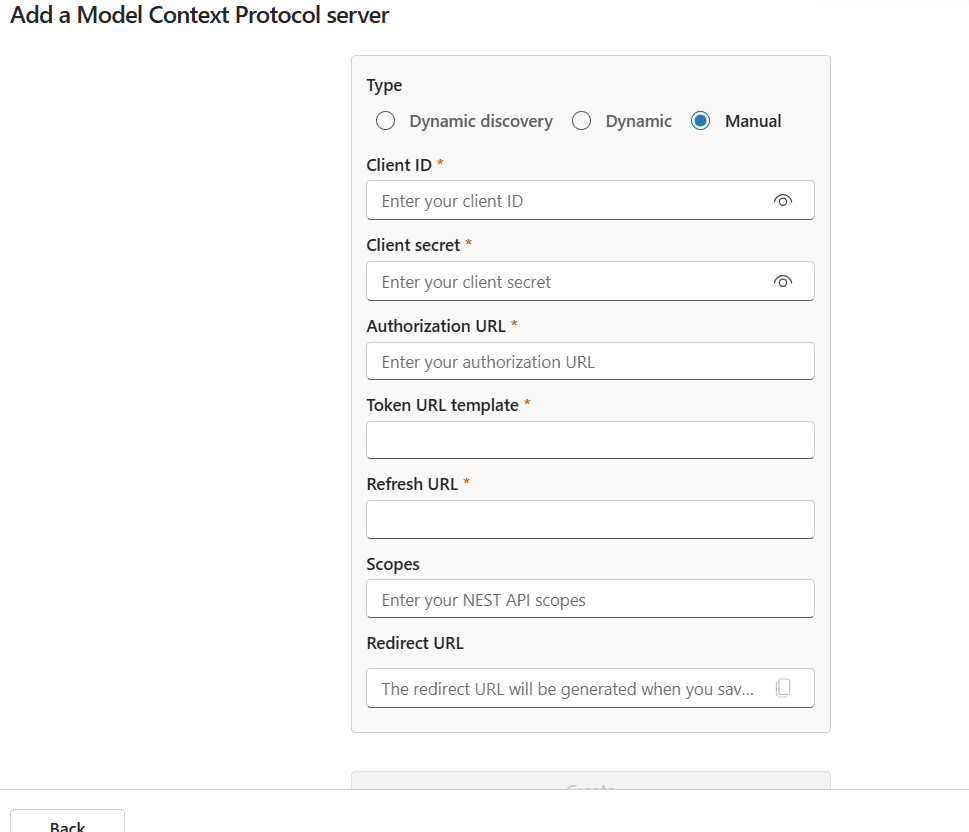
Back in Copilot Studio's MCP server form, pick OAuth 2.0 → Manual. You now have seven fields - the form looks like this:
| Field | Value (Entra ID v2.0 endpoint) |
|---|---|
| Client ID | Application (client) ID from the app reg. |
| Client secret | The secret Value you copied in step 3.1. |
| Authorization URL | https://login.microsoftonline.com/{tenant-id}/oauth2/v2.0/authorize |
| Token URL template | https://login.microsoftonline.com/{tenant-id}/oauth2/v2.0/token |
| Refresh URL | https://login.microsoftonline.com/{tenant-id}/oauth2/v2.0/token (yes, same as Token URL for Entra - the form keeps them separate to support IdPs where they differ) |
| Scopes (form says "Optional") | api://{client-id}/access_as_user openid profile offline_access (or your Graph equivalent). Optional in the form, but practically required for Entra: without scopes you'll get tokens that fail audience validation against your MCP server. |
| Redirect URL | Leave blank. Generated automatically when you save the form (docs call it callback URL). You copy it into the Entra app reg afterwards. |
Use v2.0, not the legacy v1 endpoints. Copilot Studio supports both, but v2.0 is what every other Microsoft component expects, and the scope format above only works on v2.0.
Pro Tip
Token URL template vs. Refresh URL: the form treats these as two distinct knobs because some IdPs route refresh-grant requests to a different endpoint than the initial code-for-token exchange. For Entra ID v2.0 they are the same URL. For custom IdPs or older Okta tenants, double-check. The placeholder Enter your NEST API scopes in the Scopes field is just example text - replace it entirely, don't append to it.
3.4 Save, then close the loop with the redirect URL
Click Create. Copilot Studio saves the MCP server and shows you a callback URL (the form labels it Redirect URL; the official docs call it callback URL - same thing). Copy it.
Go back to your Entra app registration: Authentication → Add a platform → Web, paste the callback URL, save. The app reg now matches what Copilot Studio will send during the OAuth flow.
This is the most important - and most missed - step. Skip it and your first tool call dies with AADSTS50011: The redirect URI specified in the request does not match the redirect URIs configured for the application.
Then back in Copilot Studio, click Next. The Add tool dialog appears, asking you to Create a new connection for the MCP server (or pick an existing one if you wired the same server before). Create the connection - on first use, you'll be prompted to sign in with the IdP - then click Add to agent. Only after this step is the MCP server actually attached to the agent. The Create button alone just registers the server definition.
3.5 Test consent
Back in your agent, call a tool. The first invocation triggers the OAuth consent flow:
Copilot Studio caches the user's tokens. On subsequent calls within the token lifetime, the user does not see the consent card again. When the access token expires, the cached refresh token (issued because you included offline_access) gets a new one silently.
Step 4 - The five most common failures (and what to check)
| Symptom | Likely cause | Fix |
|---|---|---|
| AADSTS50011 / redirect_uri mismatch after sign-in | The Redirect URL Copilot Studio generated on save was never copied into the Entra app reg. | Open the saved MCP server, copy the auto-generated Redirect URL, paste it into the Entra app reg under Authentication → Web. Save in Entra. |
| Consent loop, users re-prompted every hour | offline_access not in the scope string, so no refresh token issued. | Add offline_access to the Scope field. |
| AADSTS65001: The user or administrator has not consented | Custom API scope requires admin consent and the user can't grant it. | Grant admin consent on the API permissions blade, or set the scope to be user-consentable in Expose an API. |
| Tool call returns 401 even after sign-in | Scope was correct for sign-in but doesn't match what the MCP server validates. | Inspect the JWT at jwt.ms. The aud claim must equal what your MCP server expects. Adjust either the scope on the Copilot Studio side or the audience validation on the server side. |
| Server URL validation fails | Endpoint is SSE-only, or behind a network the maker portal cannot reach. | Make the endpoint streamable HTTP (the modern MCP transport) and exposed publicly or via Azure API Management. |
Step 5 - Test in the agent
In the test pane, prompt the agent with something that should match a tool the MCP server exposes. The first call triggers consent, subsequent calls use the cached token. If the orchestrator is not picking up the tool, the most common cause is - again - a weak Server description. The orchestrator does not introspect the tools individually before deciding to call the server; it leans heavily on that description to decide whether to engage at all.
Pro Tip
Observability: turn on Application Insights for the agent and tail the customEvents table. Each MCP tool invocation logs a row with the server name, tool name, latency, and success flag. If you see calls being attempted but failing fast, that's an auth or networking issue. If you see no calls at all, that's the orchestrator not selecting your server - go back and rewrite the description.
Production checklist
- Client secret rotation. Entra app reg secrets expire. Set a calendar reminder for 30 days before expiry. Better: switch to certificate auth on the app reg if your MCP server's auth proxy supports it.
- Audit logging. Entra sign-in logs will show every consent and every token exchange against your app reg. Stream to Sentinel or Log Analytics for retention.
- Conditional access. The app reg is a service principal. Apply CA policies (MFA, device compliance, named locations) the same way you would for any other internal app.
- DLP. The MCP server is a tool surface. Add it to your DLP policies in Power Platform admin so makers cannot wire it to data classifications it should not see.
Closing take
The new MCP form is clean: pick auth, fill the seven Manual OAuth fields, save, then close the loop by pasting the generated redirect URL into your IdP. The work happens upstream in your identity provider, and the most expensive mistake is treating Manual OAuth as a checkbox instead of as a real auth integration.
Up next on this blog: chaining multiple MCP servers in one agent and managing per-user vs. service identities across them.